Best FPS Limiters: In-Game vs External Tools Compared
Limiting your FPS is the single most effective way to eliminate stutter and cool down your GPU. But how you limit your FPS matters just as much as what number you pick.
FPS Limiters Comparison
All limiters can show "60 FPS", but their frame pacing can be different. Here is how the top 5 FPS limiters compare:
| Limiter | Frame Pacing | Input Latency | Ease of Use | Software |
|---|---|---|---|---|
| In-Game Limiter | Very Bad | Variable | Easy | In-Game Setting |
| GPU Driver (NVIDIA / AMD) | Bad | Very Low | Easy | Driver Setting |
| framepacer | Good | Low | Easy | Frame Limiter |
| RTSS (RivaTuner) | Good | Low | Hard | Monitoring & OSD Server |
| Special K | Good | Low | Very Hard | Game Modding |
How Each Limiter Works
1. In-Game Limiter
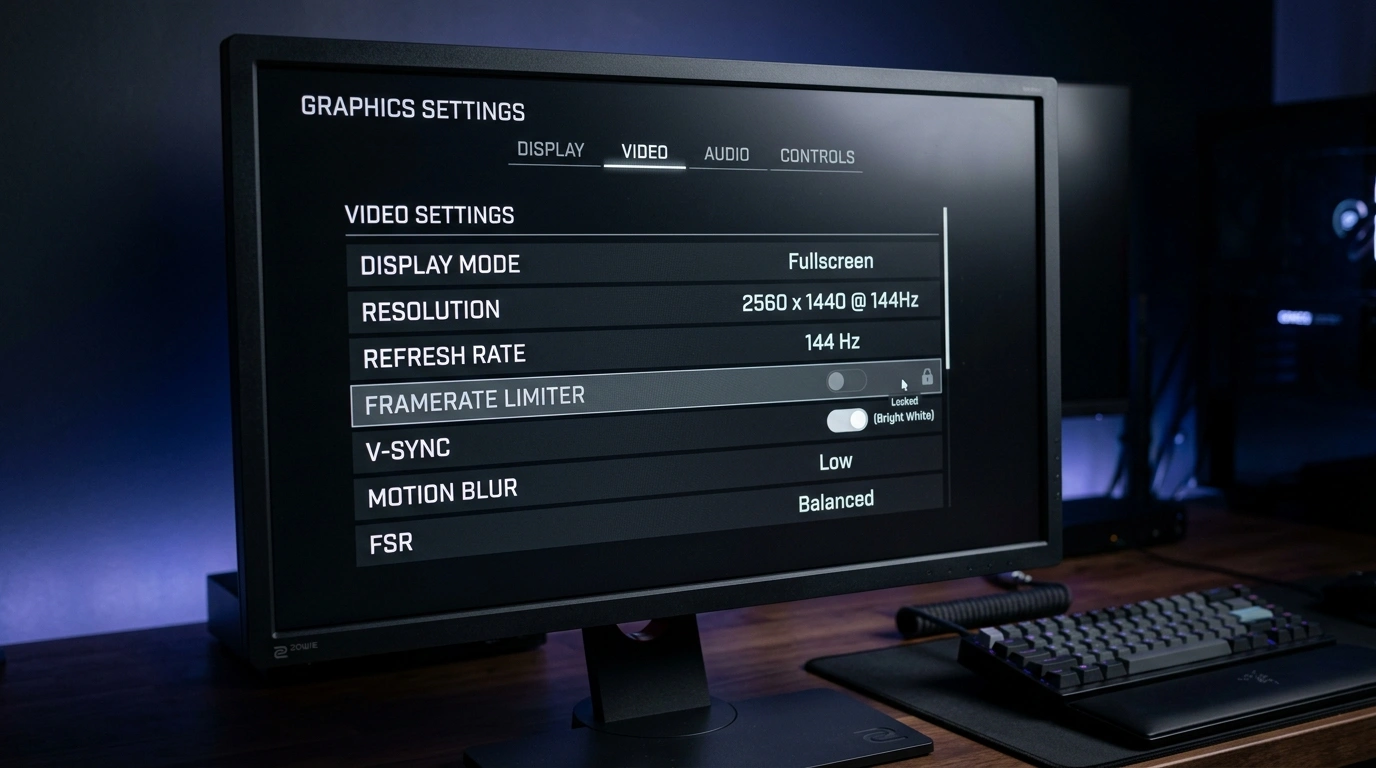
An FPS cap built directly into the game by its developers. While well-optimized game engines can deliver low latency, results vary significantly across games, and inaccurate limiters cause stutters even when your FPS looks stable.
How to use it:
- Open the game's Settings or Options menu.
- Go to the Video or Graphics tab.
- Look for a setting called Max Frame Rate, Framerate Limit, or FPS Cap.
- Set your target framerate (such as 60, 120 FPS) and save your changes.
2. GPU Driver Limiter
A global frame limiter built into your graphics card's driver software. It works across almost all your games automatically and adds very little input delay, but its frame pacing is inconsistent like built-in limiters.
How to use it:
- For NVIDIA: Open NVIDIA Control Panel (or NVIDIA App) → Go to Manage 3D Settings → Find Max Frame Rate → Turn it On, enter your target FPS, and click Apply.
- For AMD: Open AMD Software: Adrenalin Edition → Go to Gaming → Graphics → Enable Radeon Chill or Frame Rate Target Control (FRTC) → Set your target FPS.
3. framepacer
A dedicated, lightweight frame limiting utility designed specifically for smooth frame pacing. Compared to other external limiters, running heavy background suites or complex overlays, framepacer focuses entirely on frame limiting to keep your frametime graph completely flat.
How to use it:
- Launch framepacer.
- Enter your desired FPS target (like 60, 90, or 120 FPS) and press Apply.
4. RTSS (RivaTuner Statistics Server)
A popular hardware monitoring and on-screen display (OSD) server (often bundled with MSI Afterburner) that includes a high-precision frame limiter. Has many customization and limiter options, making it a reliable choice for flat frametimes at the cost of running a heavier background suite.
How to use it:
- Open RivaTuner Statistics Server (RTSS).
- On the right side of the main window, find the Framerate limit box.
- Click the box, type your target FPS (such as
60), and press Enter. - Keep RTSS running in your Windows system tray while gaming.
5. Special K
An advanced game modding and graphics injection framework. It hooks deep into a game's rendering pipeline to fix broken game engine clocks, improve HDR, and stabilize frame presentation in notoriously difficult PC ports. It has a steep learning curve and can be hard to set up.
How to use it:
- Install and launch Special K (or place its files in the game folder).
- Launch your game.
- Press Ctrl + Shift + Backspace on your keyboard to open the Special K in-game overlay.
- Expand the Framerate Limiter section, toggle it On, and set your target FPS.
Which Limiter Should You Choose?
For Competitive Esports (Valorant, CS2, Apex)
Use the In-Game Limiter paired with NVIDIA Reflex or AMD Anti-Lag for the lowest possible latency.
For Smooth Gameplay
Use framepacer to eliminate stutters and achieve smooth gameplay.
For Power Users
Use RTSS if you need in-depth hardware telemetry and on-screen overlays, or Special K if you need deep engine modding and HDR retrofitting on broken PC ports.