
Compare
See how framepacer improves your gaming experience
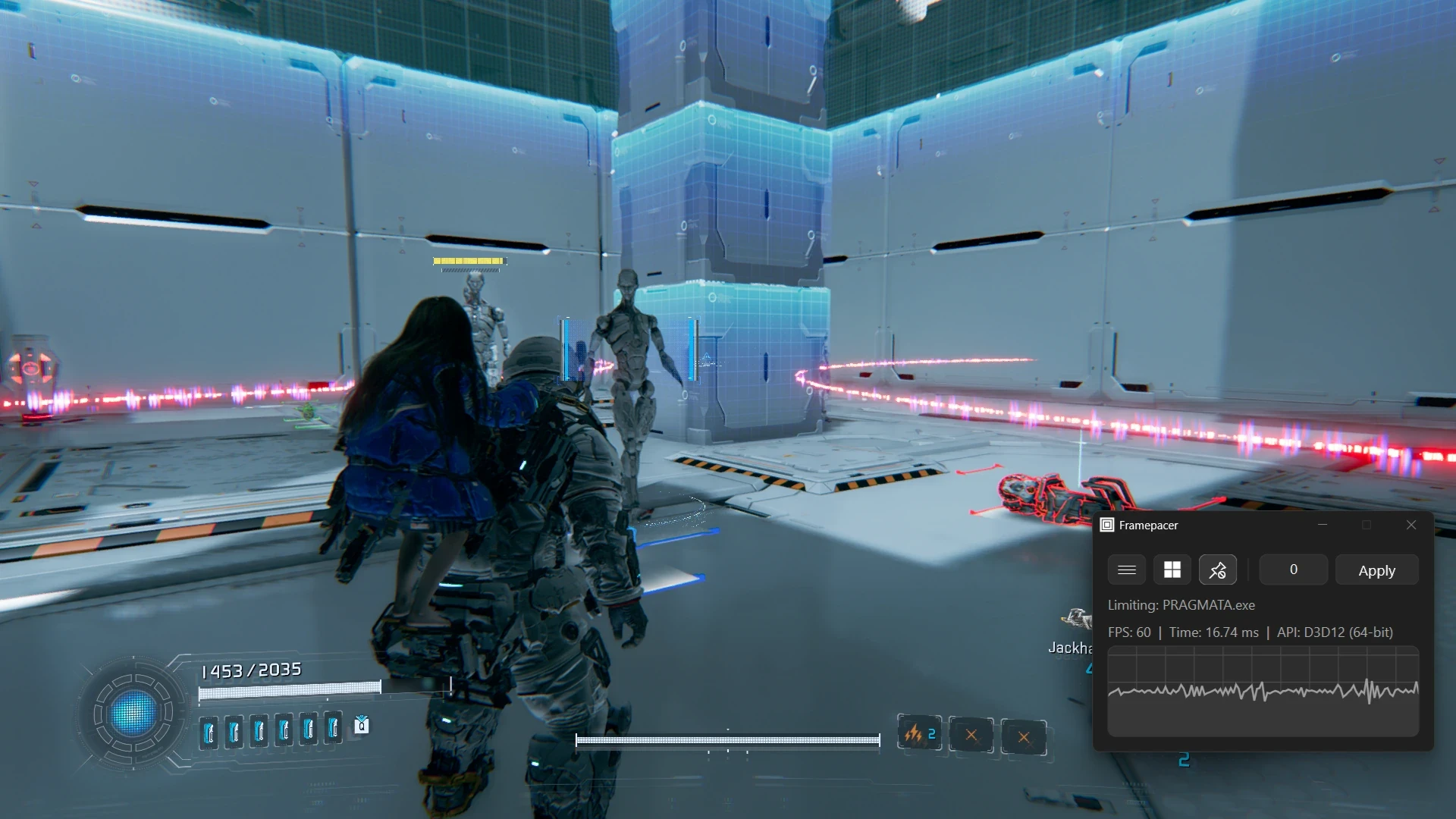
In-Game Limiter 120 FPS
Graph showing erratic frametimes averaging 8.33ms with stutters.120
Avg FPS
8.33ms
Avg Frame
Stutters
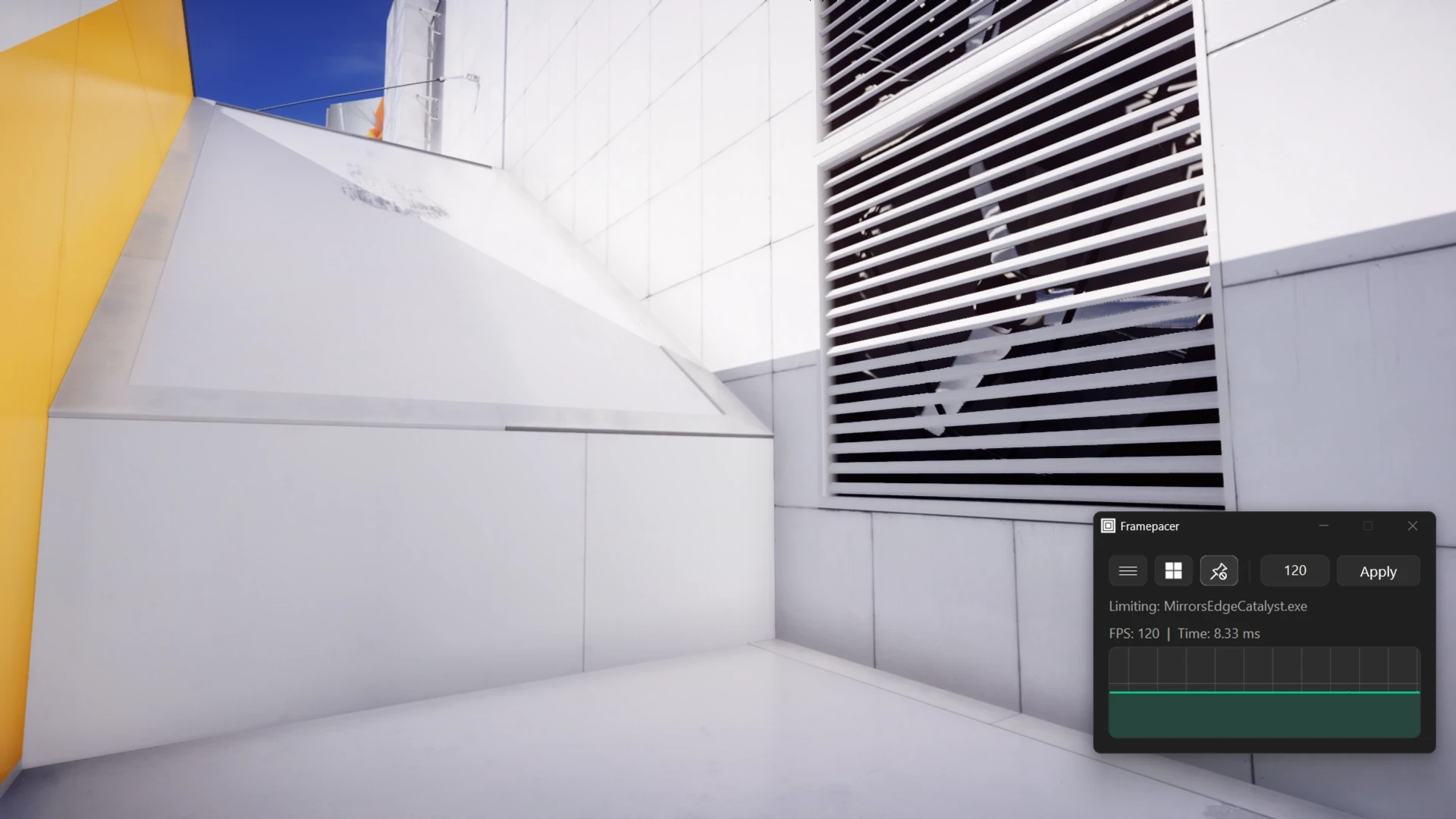
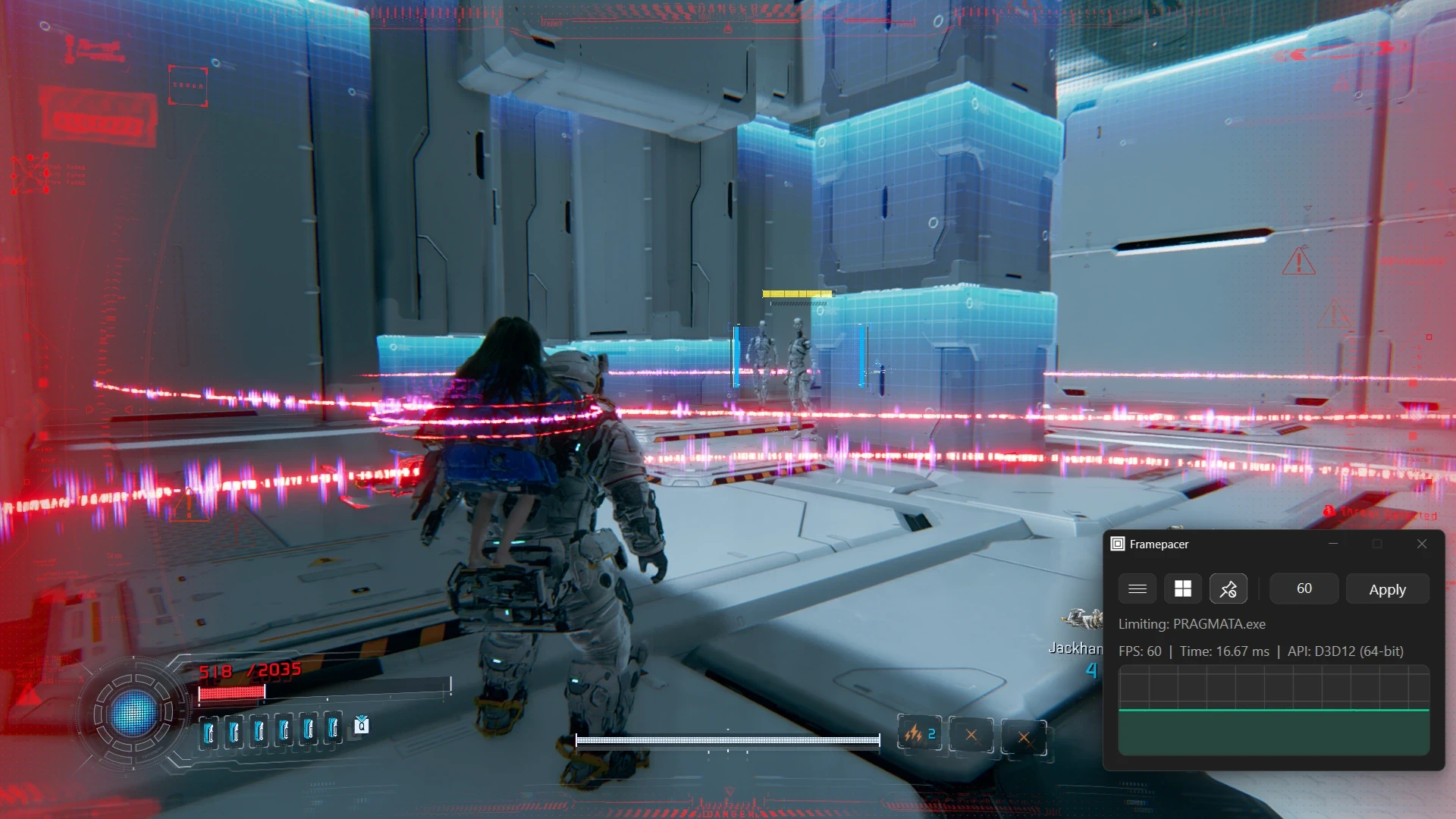
framepacer 120 FPS
Graph showing perfectly flat frametimes averaging 8.33ms indicating maximum smoothness.120
Avg FPS
8.33ms
Avg Frame
Smoothness
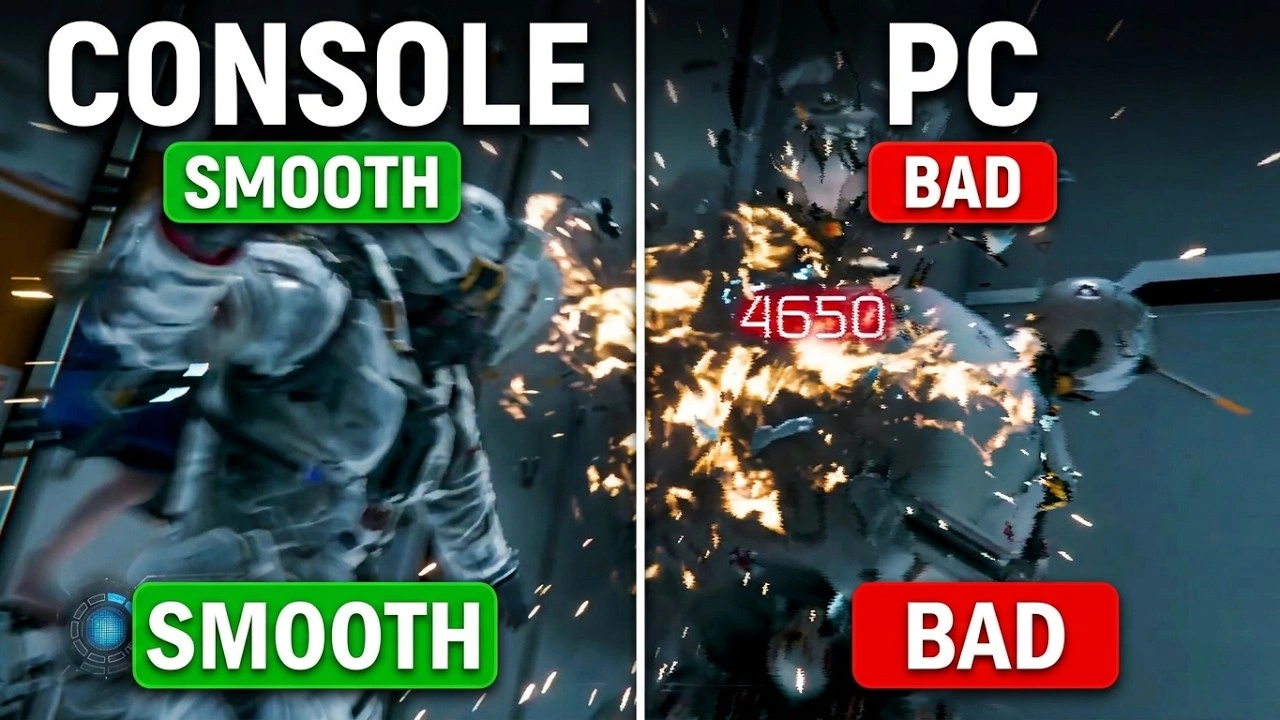
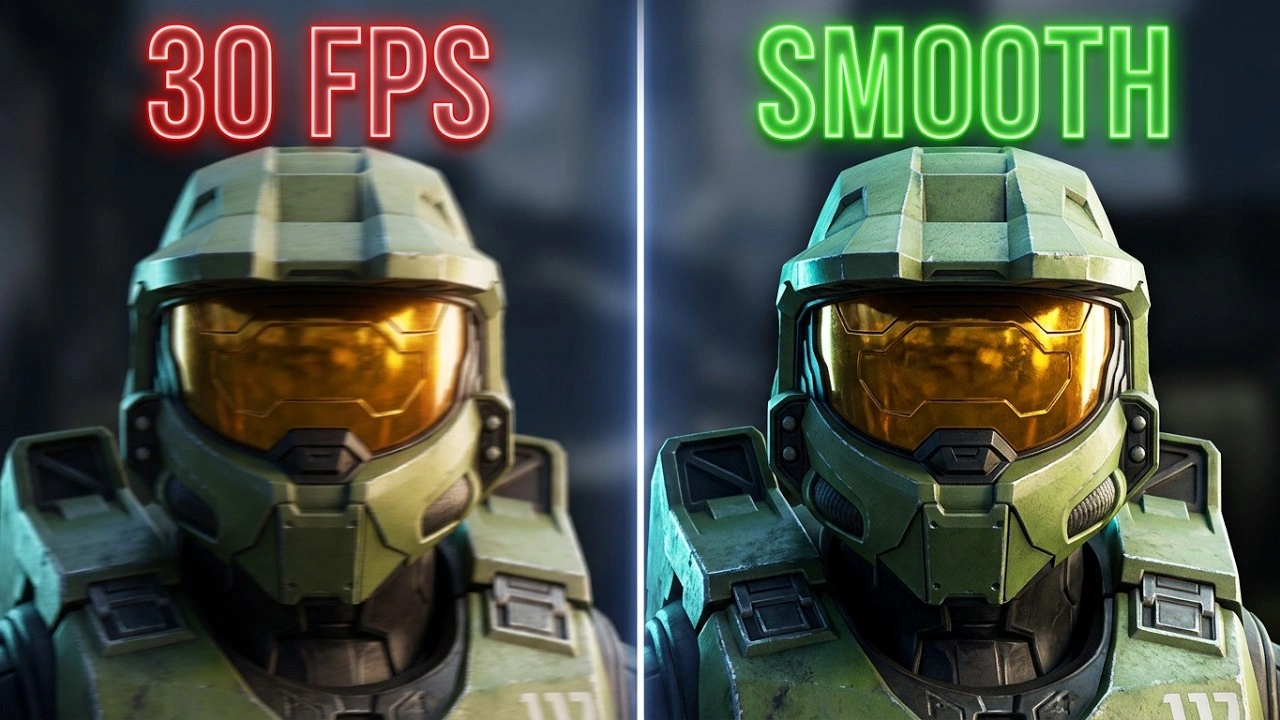
In-game limiters do not have precise frame pacing. With framepacer, you get the same smooth gameplay experience you love from consoles.
Recommended Setup
Follow this guide for console-like experience on your PC
Select your display type
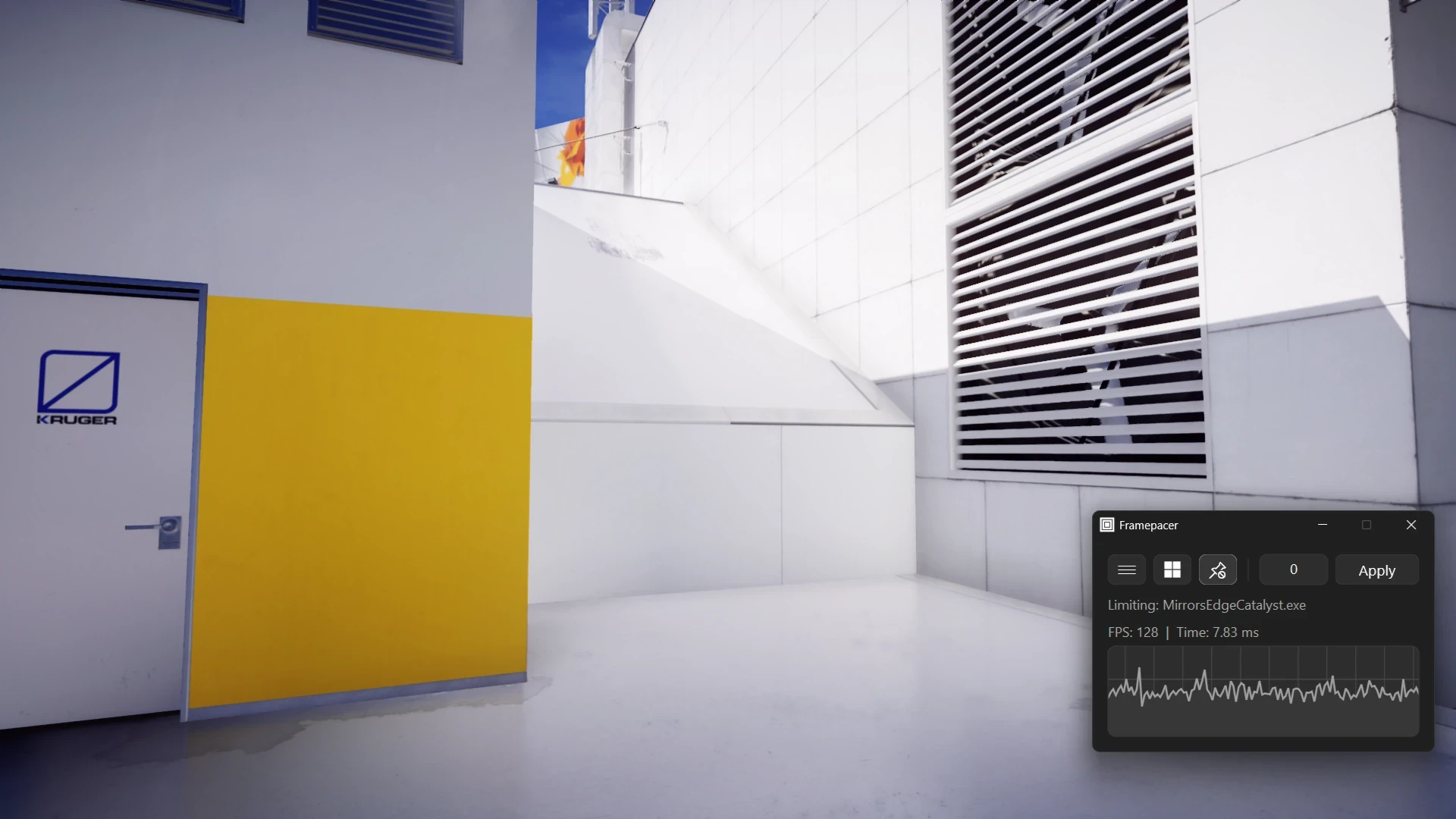
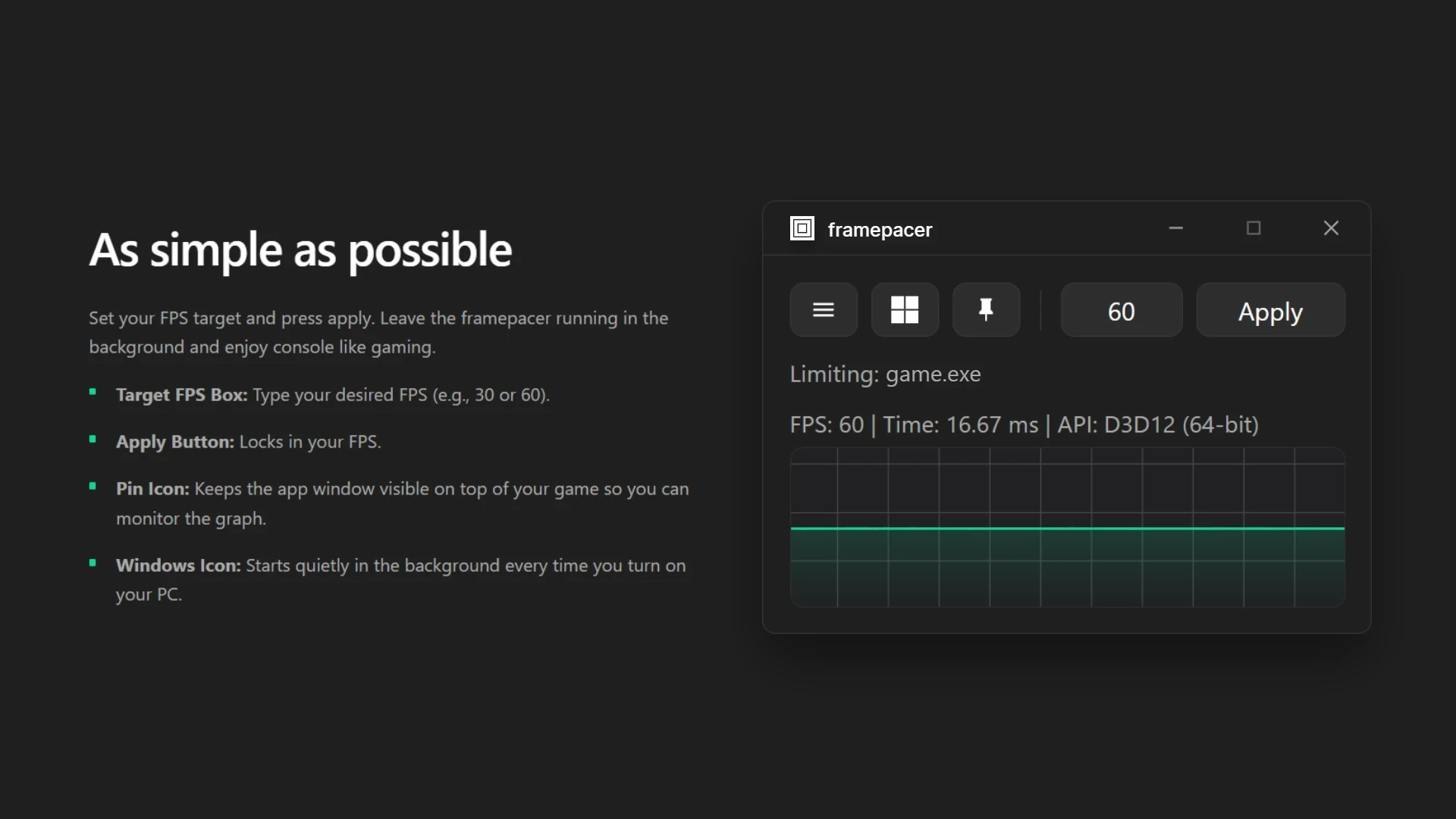
Launch framepacer and set your FPS. Set a target that your PC can consistently achieve and maintain, and never set it higher than your monitors refresh rate. To avoid conflicts, turn off all other limiters.
Enable V-Sync in your game options. This perfectly aligns each produced frame with your monitors display cycles. It entirely removes irritating horizontal cuts in the image (screen tearing) and keeps it together for a clean, steady presentation.
Enable Motion Blur in the game settings. It mimics how real cameras and our own eyes perceive quick movement. When you turn the camera, motion blur softens the movement rather than creating a sequence of disconnected pictures. It fills in the gaps between frames, resulting in a smooth gaming experience.
Connect a gamepad (controller) for the smoothest experience. Analog sticks feel smooth at all FPS levels, however a mouse requires significantly higher FPS to feel the same.
Launch framepacer and set your FPS. Set a target that your PC can consistently achieve and maintain, and never set it higher than your monitors refresh rate. To avoid conflicts, turn off all other limiters.
Enable G-Sync/FreeSync. The Variable Refresh Rate (VRR) feature enables your screen to dynamically speed up or slow down to meet the game's exact pace.
Enable Motion Blur in the game settings. It mimics how real cameras and our own eyes perceive quick movement. When you turn the camera, motion blur softens the movement rather than creating a sequence of disconnected pictures. It fills in the gaps between frames, resulting in a smooth gaming experience.
Connect a gamepad (controller) for the smoothest experience. Analog sticks feel smooth at all FPS levels, however a mouse requires significantly higher FPS to feel the same.
Frame Pacing Guides
Benchmarks, performance guides, and tutorials to master frame pacing
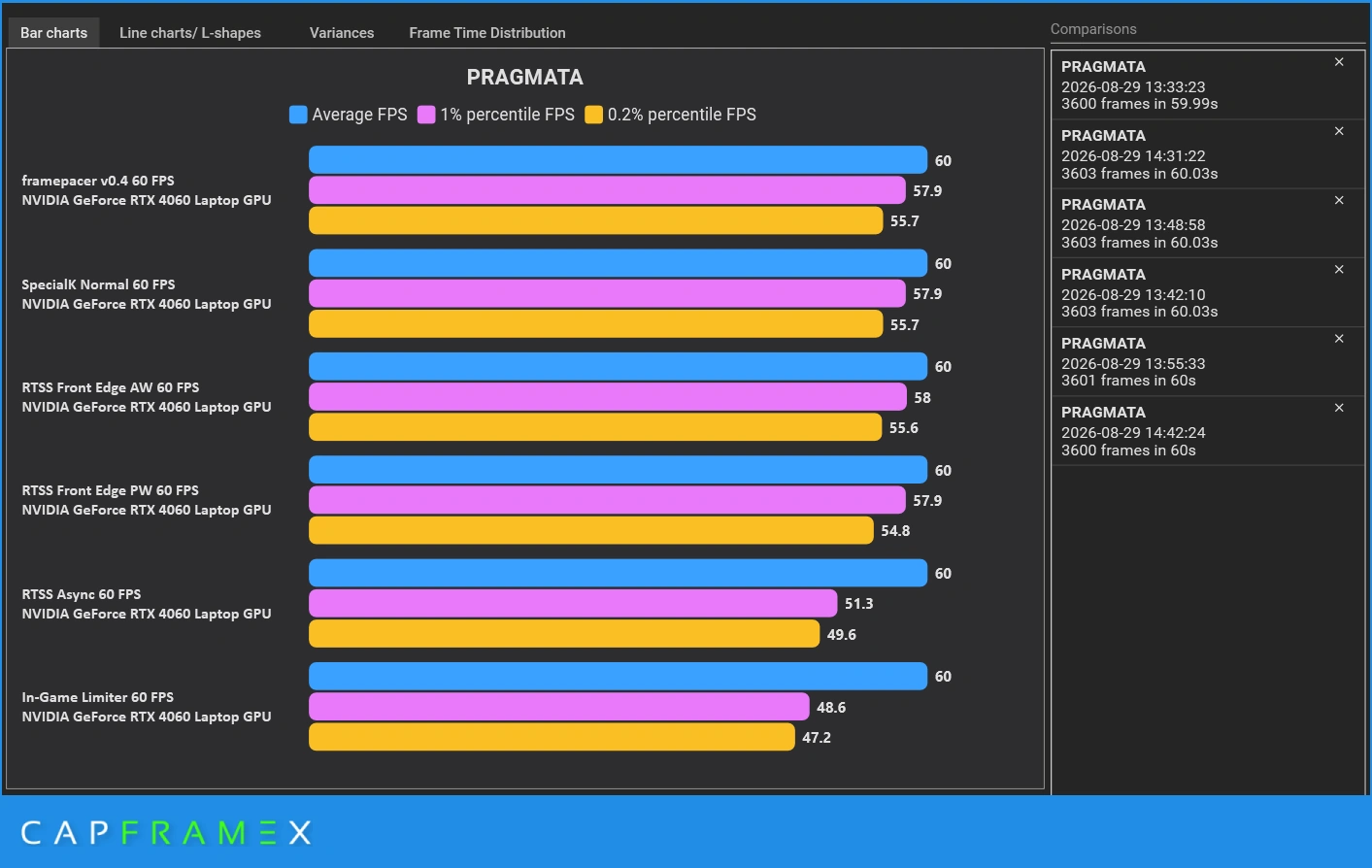
Frame Limiters Benchmarked: Real-Life Frame Pacing Comparison
In-game limiter, NVIDIA App driver limiter, RTSS, Special K, and framepacer benchmarked. See why all 60 FPS limits are not equal.
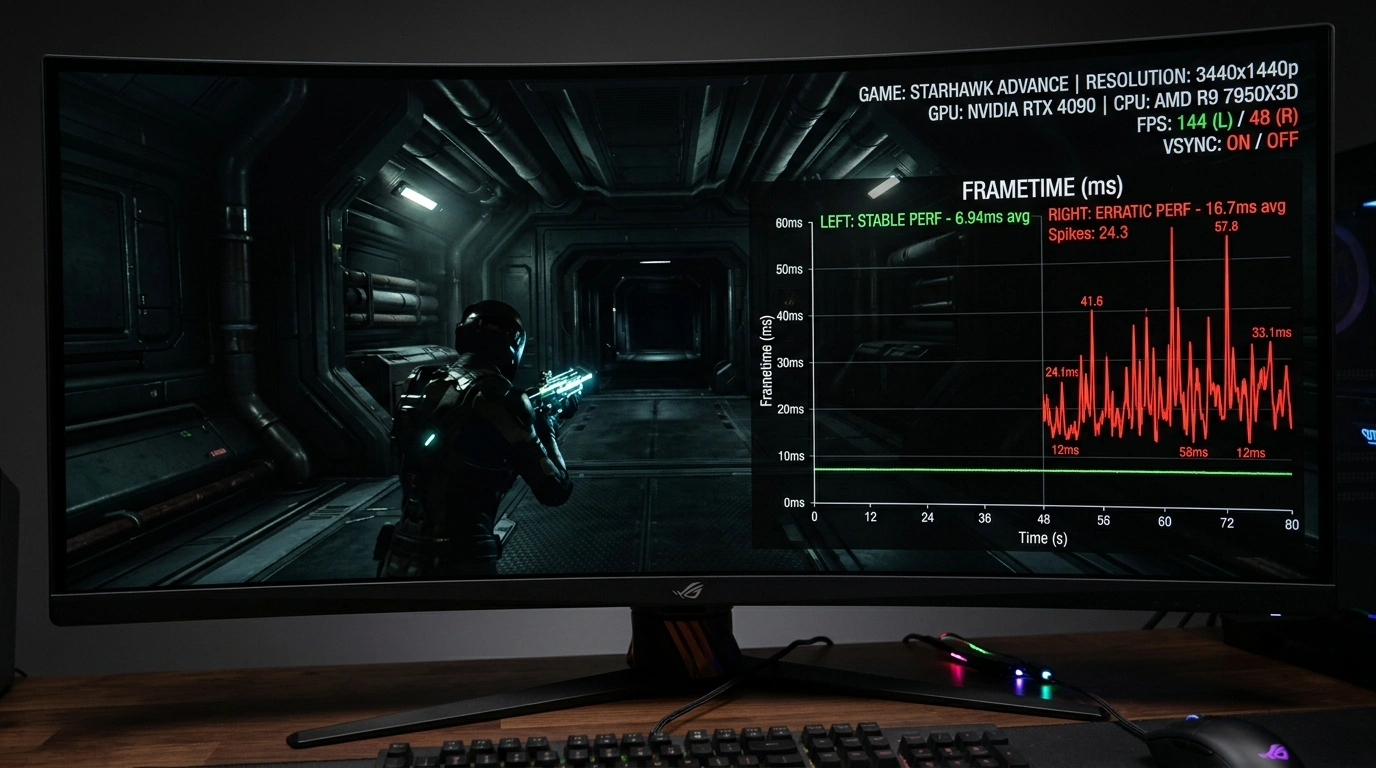
What is Frame Pacing? Why Games Stutter Even at High FPS
High FPS does not guarantee smooth gameplay. Learn how uneven frame delivery creates stutter and micro-judder even at 100+ FPS.
How to Fix Stutter in Lossless Scaling: Why Base Framerate is Important
Fix stutter, motion warping, and input lag in Lossless Scaling. Learn why a stable base framerate is essential and how to set up LSFG for truly smooth motion.
FAQ & Patch Notes
Common questions and the latest updates
Compared to in-game limiters, framepacer provides much better frame pacing. While RTSS provides similar high precision frame pacing with its "Front Edge Sync" limiter, framepacer delivers that same smoothness in a modern, lightweight, one-click app.
While framepacer is not a cheat, aggressive kernel anti-cheats (like Vanguard or EAC) may flag external frame limiters, so we do not support games with anti-cheat solutions.
Yes, it adds a tiny amount of input lag, but it is barely noticeable. But compared to V-Sync and unlimited (99% GPU), it actually reduces the input lag.
Yes, you can run the executable directly if you do not want to launch it through the Steam client, and it works with non-Steam games too.
Set your game to "Borderless Fullscreen" mode. If a game runs in "Exclusive Fullscreen," Windows hides framepacer behind the game, even if it is pinned on top.
Lossless Scaling requires stable base frames to work best. Use it together with framepacer for the best experience. Read the Lossless Scaling guide for setup tips.
framepacer limits frames your PC can already render. If the graph spikes, either your hardware cannot sustain the target FPS or the game engine is experiencing internal stutters. Lower your target FPS or in-game settings until the graph stays flat.
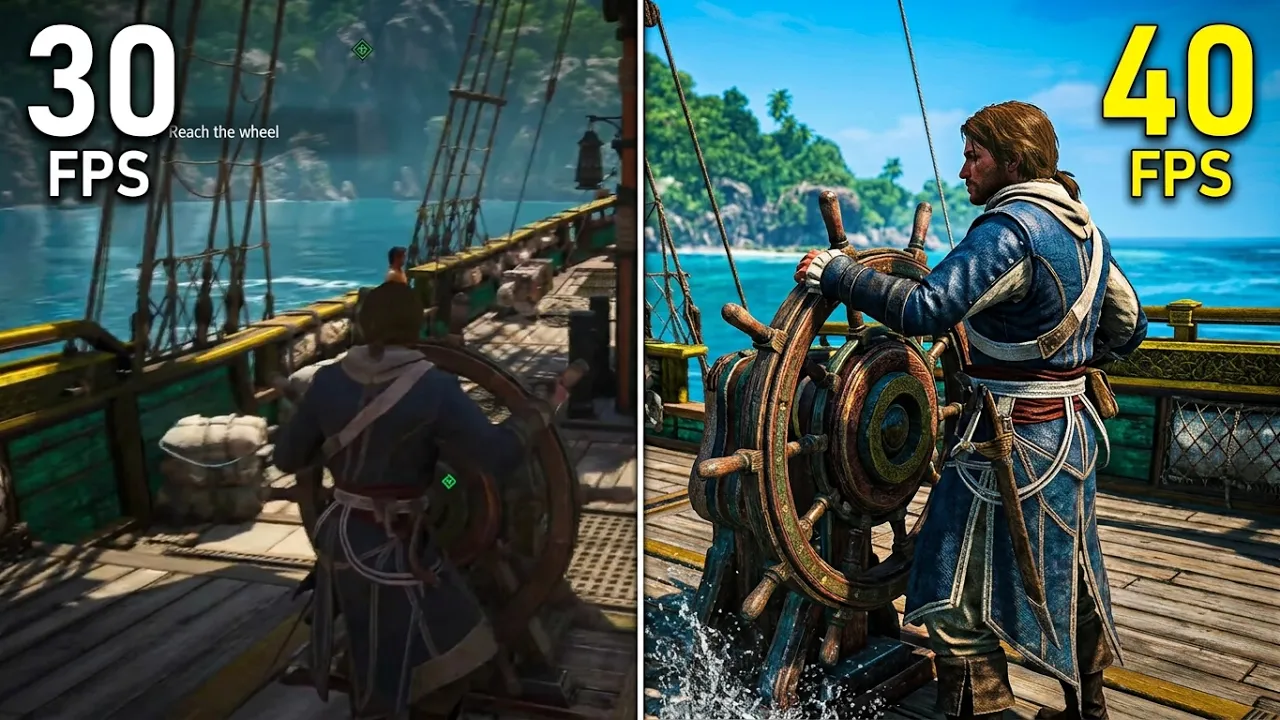
40 FPS is the ideal sweet spot. It delivers half the smoothness gain of 60 FPS while saving significant GPU power, and divides evenly with 120Hz displays.
- Added FSR, XeSS, and Smooth Motion Frame Generation support.
- Added AMD Anti-Lag 2 and Intel XeLL low-latency support.
- Improved anti-cheat detection accuracy and override support.
- Fixed DX8 game limiting and DX9 Alt-Tab issues.
- Added settings.ini options for launcher redirect, tray behavior, and themes.
- Added Reflex support.
- Added Reflex Limiter for DLSS Frame Generation.
- Added DLSS Dynamic MFG support.
- Dynamic anti-cheat detection.
- Pacer core optimization and stability fixes.
- Added controller support.
- Added ReShade support.
- Upgraded UI render engine.
- Improved Microsoft Store game support.
- Improved status text.
- Added global hotkeys.
- Added per-game FPS memory.
- Added Light mode and Arabic language support.
- Manual override for game detection.
- Game fixes (GTA IV, Hitman: Blood Money) and stability improvements.
- FPS value is now remembered.
- Improved game detection accuracy.
- Added support for Microsoft Store games.
- Smoother graph.
- General stability improvements.
- 30 new languages.
- New system tray menu.
- Game detection bug fixed.
- Various localization, interface, and stability fixes.
- UI render engine upgrade, sharper UI.
- Smoother graph, no more flickering.
- Faster app launch.
- Windows 11 Native button icons.
- General UI design improvements.
- Compatibility fix for DOOM: The Dark Ages and other titles.
- Added support for DirectX 8, DirectDraw.
- Faster game detection.
- Improved compatibility with 32-bit games.
- Stability fixes.
- Added dynamic graph coloring based on status.
- Introduced "Start with Windows" feature to launch silently in the system tray.
- Re-architected and stripped down the pacer engine.
- Resolved a game detector bug.
- Improved the game detection heuristics for better target election.
- Optimized build binaries to minimize false-positive flags from common antivirus software.
- Fixed DPI scaling flickering issues during resolution or system font changes.
- Added major anti-cheat titles to the blacklist.
- Initial development build of the core framepacer engine.