How to Fix Stutter in Lossless Scaling: Why Base Framerate is Important
You use Lossless Scaling, but it feels unplayable with constant stutter and input lag. How does a game running at 120 FPS with LSFG feel even worse than regular 30 FPS? You might think it's because Lossless Scaling is bad, but in reality, it is entirely about your base framerate.
Disclaimer: Lossless Scaling and the Lossless Scaling logo are trademarks of their respective owners. framepacer is an independent utility and is not affiliated with or endorsed by Lossless Scaling.
The 2 Big Reasons Lossless Scaling Stutters
When gamers experience stutter, warping, artifacting, or input lag issues with Lossless Scaling, it is almost always caused by these two:
1. Bad Frame Pacing
You must provide Lossless Scaling with a perfectly stable framerate, and the more frames you can give it, the better. But stability of the frames is much more important than the number of frames. Always prioritize solid frame pacing and aim for at least 40+ FPS base framerate. Leaving the base framerate uncapped, limiting with bad frame pacing, or providing fewer than 30 FPS will degrade LSFG's performance dramatically.
Magnifying Glass Example

You can think of LSFG as a magnifying glass. It doubles or triples your frame count. But if you feed it a chaotic framerate, it will magnify the chaos even more. Lossless Scaling (LSFG) does not render new gameplay from the game engine. Instead, it takes two real frames generated by your graphics card and creates an artificial in-between frame to bridge the gap.
Garbage In, Garbage Out
If the frames arrive at exact, predictable intervals, LSFG can easily add extra frames in between.
If the frames arrive in random bursts (one fast, one slow), LSFG will get confused and the generated frames will end up mistimed, causing motion warping and stutter.
2. 100% GPU Usage
Another common mistake: the game is already using 100% of your GPU, and you expect LSFG to save you. Lossless Scaling requires GPU power to capture the screen and calculate new frames. If your game runs uncapped and pushes your GPU to 99% or 100% load continuously, there are zero resources left for the frame generator. This causes dropped frames, lag spikes, and heavy input delay. Instead, cap your game and aim for less than 85% GPU usage so LSFG has enough room to work. If you run LSFG on a secondary GPU (different from your main gaming GPU), you can ignore this limitation.
GPU is saturated. Lossless Scaling starves for compute time, resulting in dropped frames and input lag spikes.
Leaving 15% headroom gives Lossless Scaling the exact power needed to generate frames instantly with low latency.
Why framepacer is the Perfect Companion for Lossless Scaling
While Lossless Scaling takes care of multiplying your frame rate, framepacer takes care of the foundation.
The Smooth Frame Generation Pipeline
- Base Frame Pacing: framepacer guarantees that each base frame arrives at exact millisecond intervals, giving the interpolation algorithm a perfectly predictable base framerate.
- GPU Headroom: By locking your base FPS to a sensible target (such as 30, 40, or 60 FPS), your GPU drops below 85% load, leaving plenty of power for Lossless Scaling.
- Lightweight: Runs with minimal resource usage.
The Optimal Setup
Follow these 3 simple steps to get the most out of Lossless Scaling with framepacer:
Prepare Your Game Settings
Set up your game so Lossless Scaling can capture it properly and without interference:
- Set display mode to Borderless Windowed or Windowed (required by Lossless Scaling).
- Turn OFF in-game V-Sync and turn OFF any in-game FPS limiters.
Lock Base Framerate with framepacer
Provide a clean, flat baseline for the frame generation algorithm:
- Open framepacer.
- Choose an FPS target that your PC can easily hold at all times (e.g., 40 FPS or 60 FPS).
- Check that your GPU usage stays around 85%, ensuring enough headroom for LSFG.
Configure Lossless Scaling
Activate frame generation with optimal settings:
- Open Lossless Scaling and set Frame Generation to LSFG.
- Set Mode to Fixed (2x or 3x). Do NOT use Adaptive since you already have a stable base.
- Press Scale, click back into your game, and enjoy frame generation at its maximum capability.
Best Framerate & Refresh Rate Combinations
| Display | Base Lock | Mode | Output | Why It Works |
|---|---|---|---|---|
| 60 Hz | 30 FPS | 2x | 60 FPS | Doubles 30 FPS into a smooth 60 Hz lock with low hardware usage. |
| 120 Hz | 40 FPS | 3x | 120 FPS | The sweet spot for handhelds and mid-range PCs on 120 Hz screens. |
| 120 Hz | 60 FPS | 2x | 120 FPS | Ultra-responsive 60 FPS base doubled to match 120 Hz. |
| 144 Hz | 48 FPS | 3x | 144 FPS | Turns a 48 FPS base into a full 144 Hz display refresh. |
| 144 Hz | 72 FPS | 2x | 144 FPS | Clean 1:2 frame division for 144 Hz gaming monitors. |
Frequently Asked Questions
Can I use an in-game FPS limiter instead of framepacer?
Most in-game limiters only limit the number of frames per second rather than ensuring consistent frame pacing. framepacer is designed specifically for frame pacing, which is essential for the interpolation performance of Lossless Scaling.
Does Lossless Scaling add input lag?
Frame generation introduces processing latency because frames must be analyzed before display. However, locking a solid base framerate with framepacer and leaving GPU headroom keeps your input latency predictable, responsive, and free from sudden spikes.
Should I choose 2x or 3x mode in Lossless Scaling?
If your system can maintain a native 50 to 60 FPS, 2x mode offers the lowest latency and sharpest visual clarity. If you are playing heavy single-player titles locked at 30 or 40 FPS on a 120Hz or 144Hz display, 3x mode is also ideal.
Related Guides
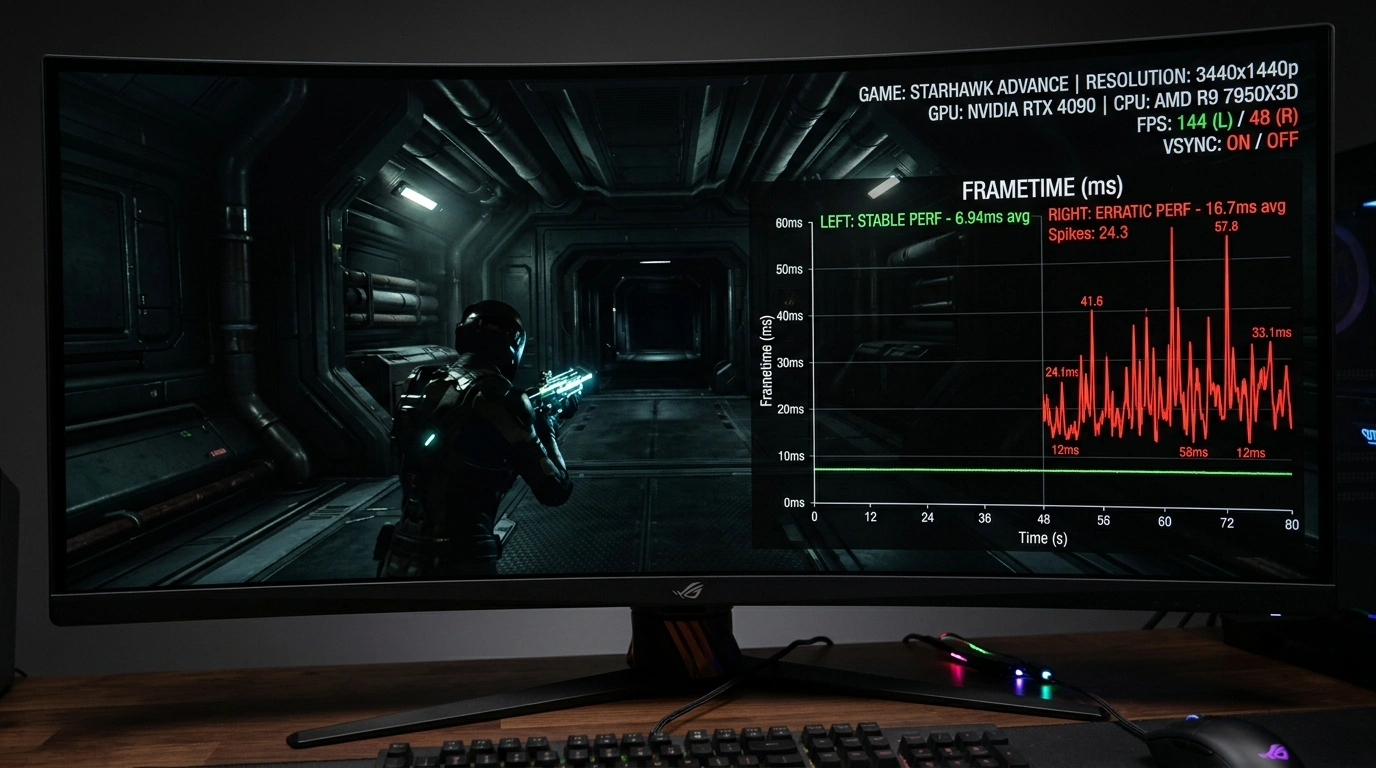
What is Frame Pacing? Why Games Stutter Even at High FPS
Understand why 120 FPS can still feel stuttery. Learn how good frame pacing fixes stutters and provides smooth gameplay.
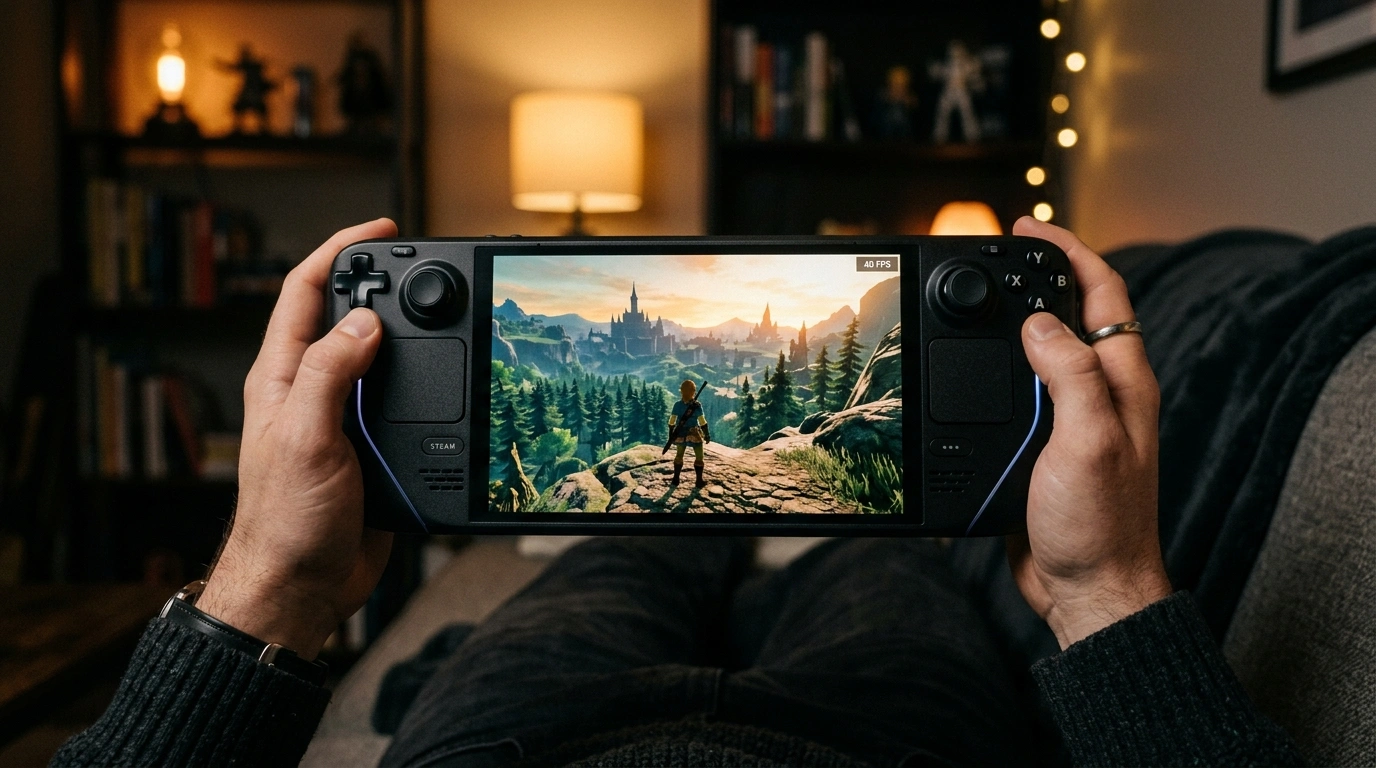
40 FPS at 120Hz Feels Like 60 FPS in Games
40 FPS on 120Hz delivers 50% of the smoothness boost of 60 FPS for only 33% more GPU effort.