How to Fix Stuttering in Games
Most troubleshooting articles give you a checklist of generic Windows tweaks (like repairing system files, disabling security settings, or closing background apps) that rarely fix the actual problem. In reality, game stutters are almost always caused by bad frame pacing and bad setups.
The 5 Fixes That Actually Stop Stutters
1 Limit FPS (Frame Pacing)
Your graphics card renders frames as fast as possible, but delivers them at erratic intervals (e.g., 5ms, then 35ms). Even though your FPS is 100, irregular delivery makes gameplay feel like it stutters every few seconds.
Do not rely on loose in-game timers. Use an external FPS limiter like framepacer to lock in consistent frame pacing. This locks every single frame to a consistent time (like 16.67ms for 60 FPS or 8.33ms for 120 FPS).
2 Leave 5%–10% GPU Headroom
When a game runs uncapped and your GPU sits at 99%–100% usage continuously, the render queue inside the graphics driver overflows. Whenever an explosion or dense scene appears, the queue stalls, creating a massive frametime spike and heavy input delay.
Cap your FPS slightly below your system's maximum output (e.g., if you average 130 FPS, cap at 117 or 120 FPS). Keeping GPU usage between 90% and 95% ensures the render pipeline never gets clogged.
3 Set G-Sync / FreeSync and V-Sync Correctly
If your framerate fluctuates above your monitor's maximum refresh rate (e.g., hitting 145 FPS on a 144Hz monitor), G-Sync instantly deactivates. The monitor reverts to traditional V-Sync tearing and stutters.
Follow this guide: G-Sync, V-Sync & FPS Limit: The Optimal Setup Guide.
4 Enable XMP / DOCP in BIOS (For desktop PCs)
Many PC builders install fast 3600MHz or 6000MHz DDR RAM, but forget to enable the memory profile in BIOS. By default, Windows runs RAM at baseline speeds (like 2133MHz or 4800MHz), causing CPU asset streaming to stutter when moving through open-world maps.
Restart your PC, enter BIOS, locate XMP (Intel) or DOCP / EXPO (AMD), and enable it.
5 Increase Shader Cache Size to 10GB
Modern DirectX 12 and Vulkan titles compile visual shaders during gameplay. If your GPU driver's shader cache is set to the default small limit, it constantly deletes previously compiled shaders, causing recurring stutters whenever new visual effects appear.
The Solution: Open NVIDIA Control Panel > Manage 3D Settings > Global Settings > set Shader Cache Size to 10 GB (or Disabled / Unlimited on AMD).
Related Guides
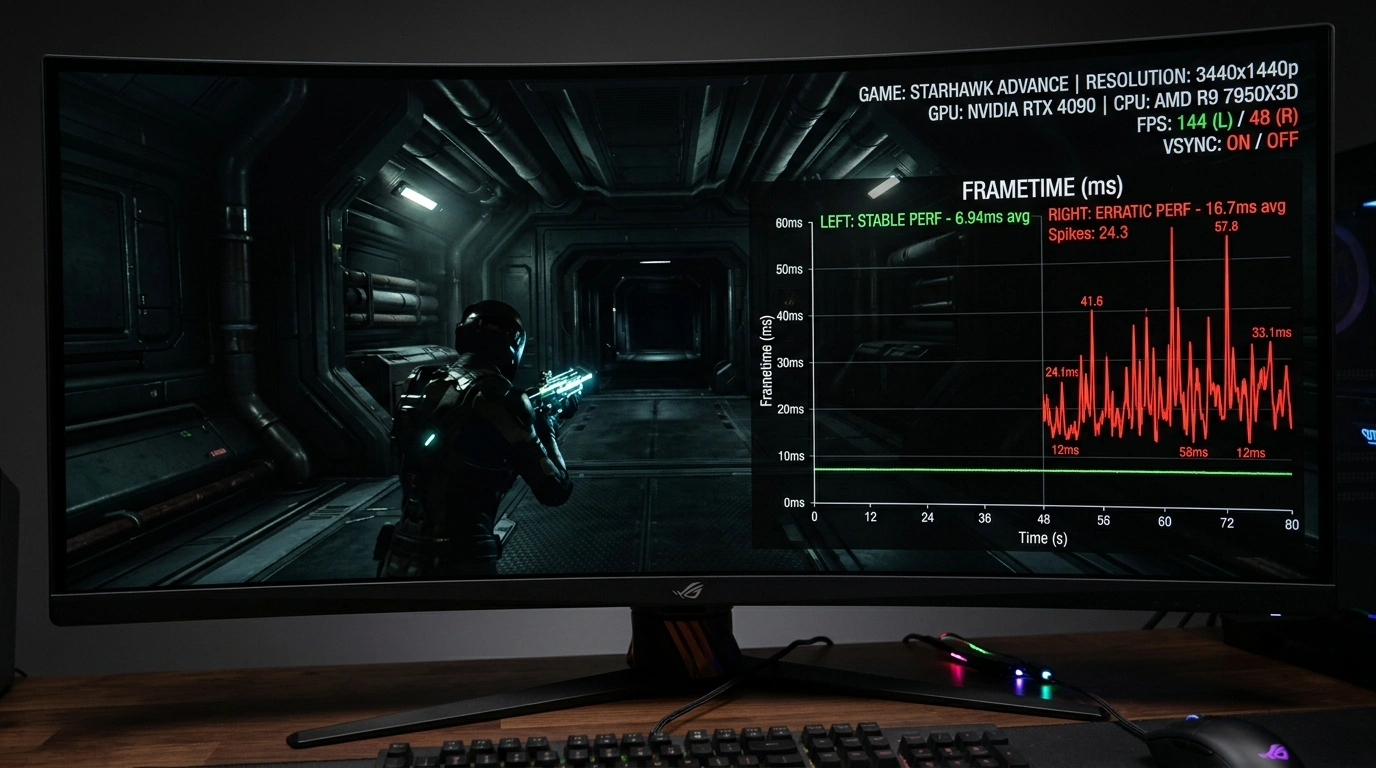
What is Frame Pacing? Why Games Stutter Even at High FPS
Understand why 120 FPS can still feel stuttery. Learn how good frame pacing fixes stutters and provides smooth gameplay.

How to Fix Stutter in Lossless Scaling: Why Base Framerate is Important
Fix stutter, motion warping, and input lag in Lossless Scaling. Learn why a stable base framerate is essential and how to set up LSFG for truly smooth motion.