How to Lower GPU Temperature & Fan Noise on PC
We have all been there: you boot up a game and within two minutes your graphics card sounds like a vacuum cleaner, blowing hot air straight across your desk. Here is why playing with unlimited FPS causes this, and how a simple FPS limit fixes it.
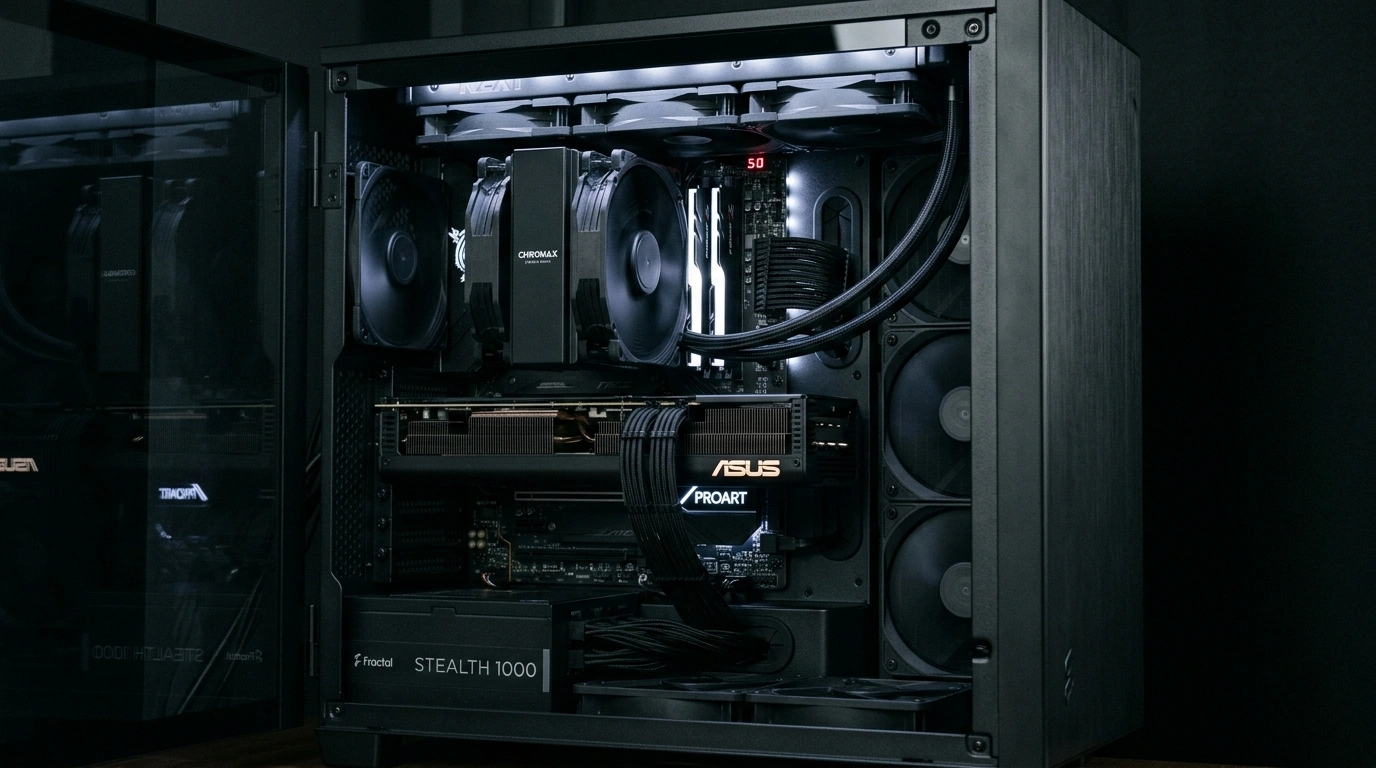
The Unlimited FPS Problem
When you play with unlimited FPS, your graphics card operates at 100% full throttle, non-stop.
If your monitor is a 60Hz or 120Hz display, rendering 160 FPS doesn't make the game look any better. It simply throws away 40 to 100 extra frames every single second. Those discarded frames generate massive wattage, heat, and coil whine for zero visual benefit.
Why Limiting FPS is Better Than Lowering Graphics
Many gamers lower graphics or resolution when their PC gets too hot. But simply lowering settings lets the GPU push even more frames, keeping power usage at 100%.
Limiting your framerate gives your GPU breathing room. Instead of running at 100% load continuously, your graphics card renders what your screen actually needs and rests for the remaining time.
Bonus Tip: Undervolt Your GPU for Maximum Efficiency
Graphics card manufacturers supply extra electrical voltage out of the box to ensure stability across every chip produced. But that doesn't mean your card needs all that voltage. If you won the silicon lottery, your chip might need far less voltage. By using software like MSI Afterburner, you can configure your graphics card to use less voltage while maintaining full performance.
Undervolting is completely safe, cannot damage your chip, and often reduces GPU power draw by 30W–75W. When combined with a capped framerate, your graphics card will run cooler and stay quiet during gameplay.
Quick Setup Guide
Follow this 4-step strategy to dramatically lower temperatures, reduce noise, and optimize efficiency:
Match Your Screen
If you have a 60Hz screen, limit to 60 FPS. If you have a 120Hz or 144Hz screen with G-Sync/FreeSync, limit accordingly. Check our G-Sync & V-Sync Setup Guide for exact limits.
Proper Frame Pacing
Use a precise limiter (such as framepacer) to ensure the limit delivers flat, consistent frametimes without stutters.
Max Out Graphics
With the extra GPU headroom and saved power, you can turn on ray tracing, enable path tracing, or increase graphic settings and resolution.
Enjoy Quiet Gaming
Your GPU will run up to 20°C cooler, fans will slow down to quiet RPMs, and your room stays cooler.
Related Guides
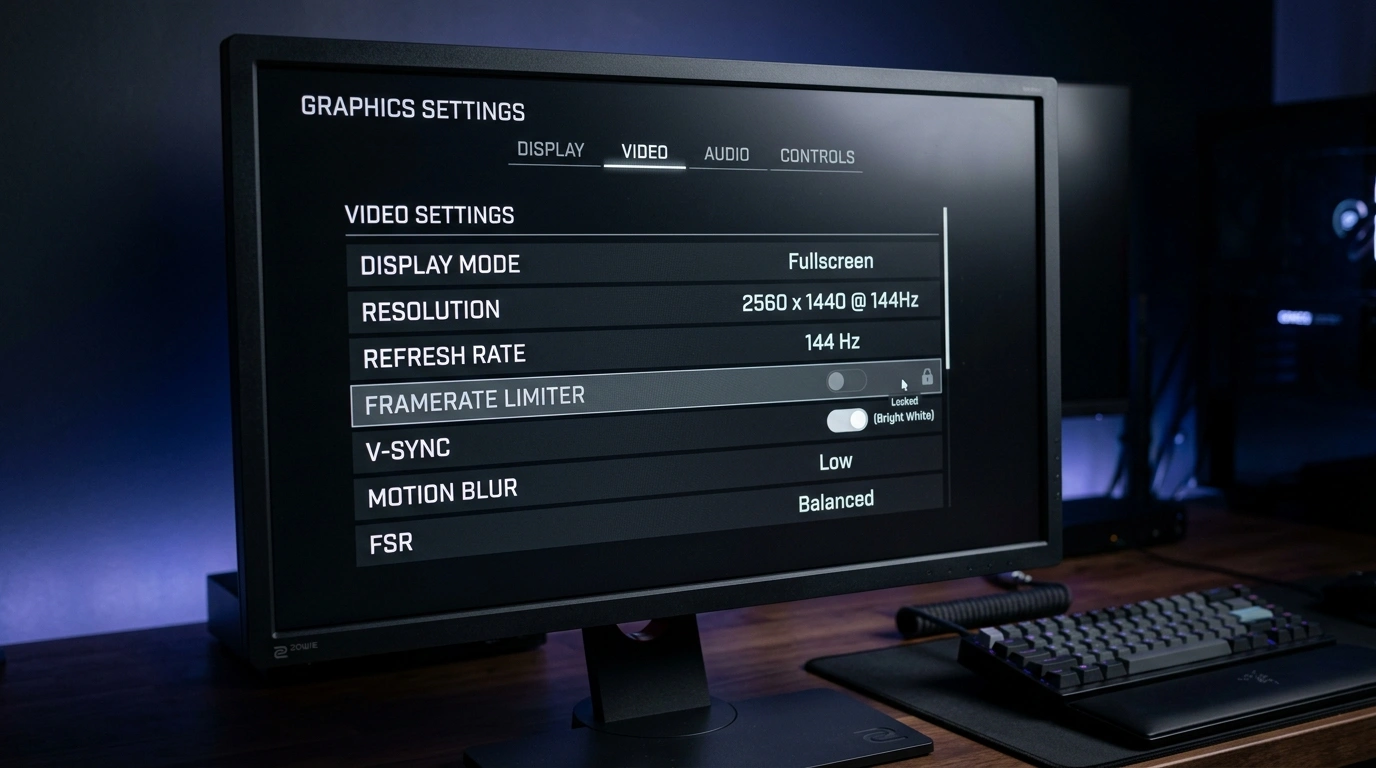
Best FPS Limiters: In-Game vs External Tools Compared
Compare the top 5 limiters: In-Game, GPU Driver, framepacer, RTSS, and Special K across frame pacing, input latency, ease of use.
Does 100% GPU Usage Cause Input Lag in PC Games?
Debunk the unlimited FPS myth. See how 100% GPU load clogs the render queue with delay, and why leaving 5%–10% headroom restores instant mouse aim.